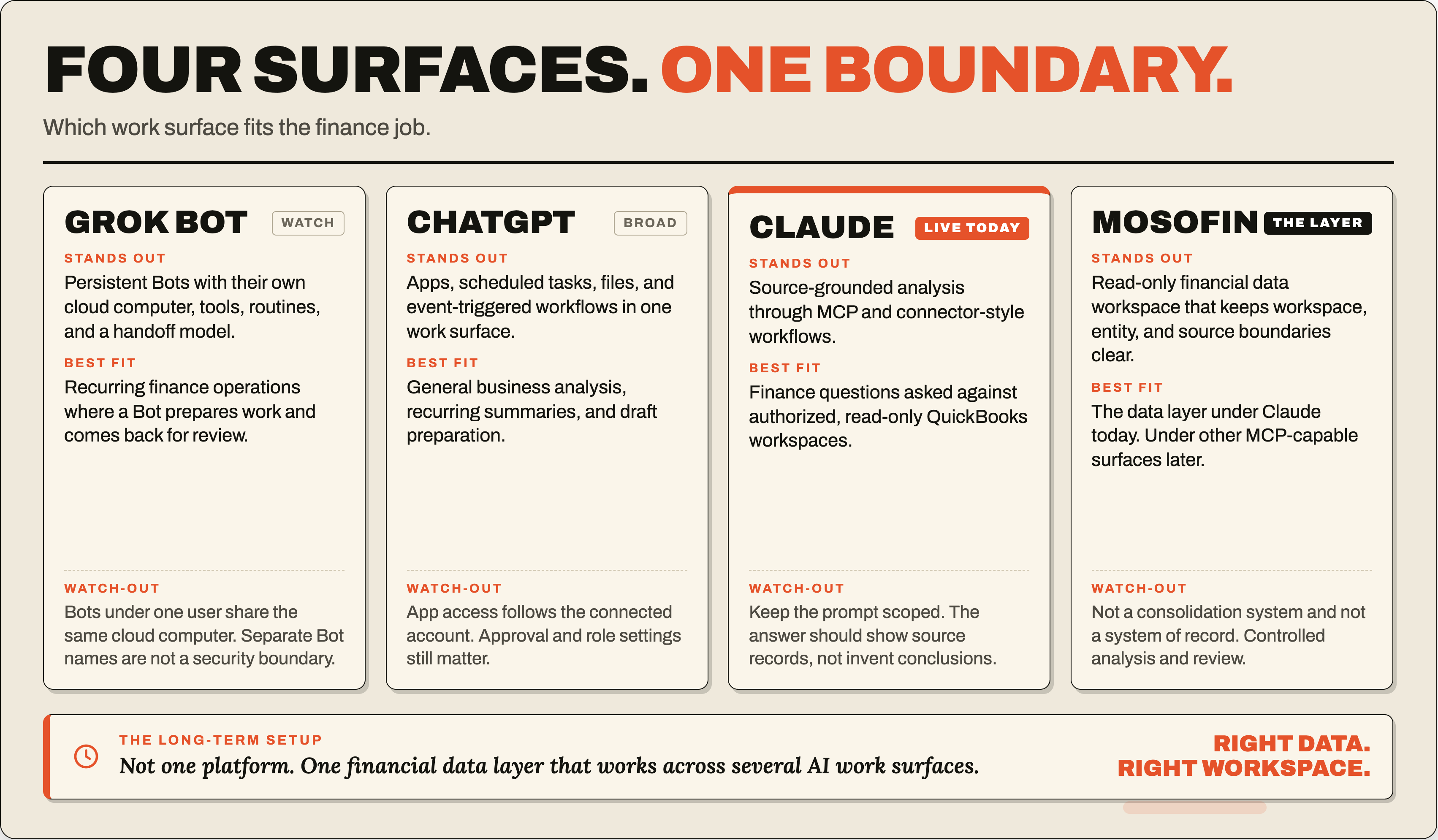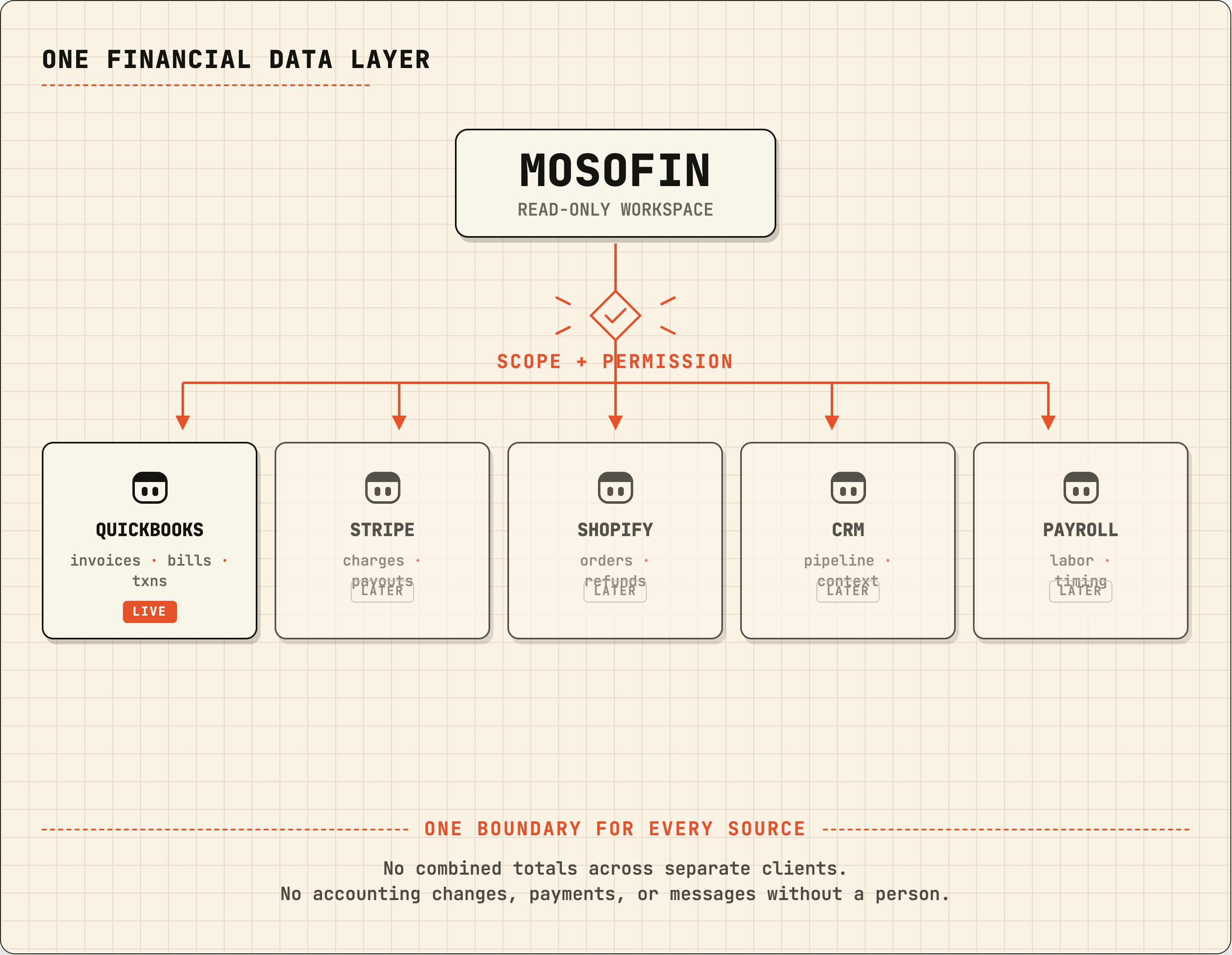
MosoFin connects to Grok through a custom MCP connector. After you sign in to MosoFin and approve access, Grok can ask questions against live QuickBooks data in the workspaces you are authorized to use. The connector is read-only: it cannot post transactions, change records, send payments, or approve accounting work.
QuickBooks is currently the only MosoFin source available through this Grok connector. Other sources and AI destinations require separate setup and permission documentation.
What the Grok connector is for
A finance professional may need to review cash movement, overdue invoices, or month-end exceptions across selected workspaces. The connector lets Grok request permitted data; a person checks the result against source records.
The roles are distinct:
| Part | Responsibility |
|---|---|
| MosoFin | Provides selected, permission-scoped financial workspaces and source-specific retrieval tools |
| Grok | Organizes the task, asks for the permitted data, and prepares a draft analysis or exception list |
| Finance professional or owner | Reviews findings, decides what to do, and approves any consequential action |
| QuickBooks | Remains the system of record |
Connect MosoFin in Grok
For a personal Grok account, open Connectors, select New Connector → Custom, and enter the MosoFin MCP server URL:
https://mcp.mosofin.com/mcp
Continue through MosoFin sign-in and approve the requested access. In Grok Business or Enterprise, an admin must first add the custom MCP server in the xAI console under Grok Business → Connectors → Add Connector → Other. Once it is provisioned, each member connects their own MosoFin account at grok.com/connectors. The full setup guide is in the MosoFin Grok destination documentation.
Once connected, start with this test:
List my MosoFin workspaces.
The result should list only workspaces your MosoFin account can access. Confirm the list before asking a financial question.
A useful first review
A practical first question names the workspace and the period:
Using [workspace name], summarize revenue and expenses for last month.
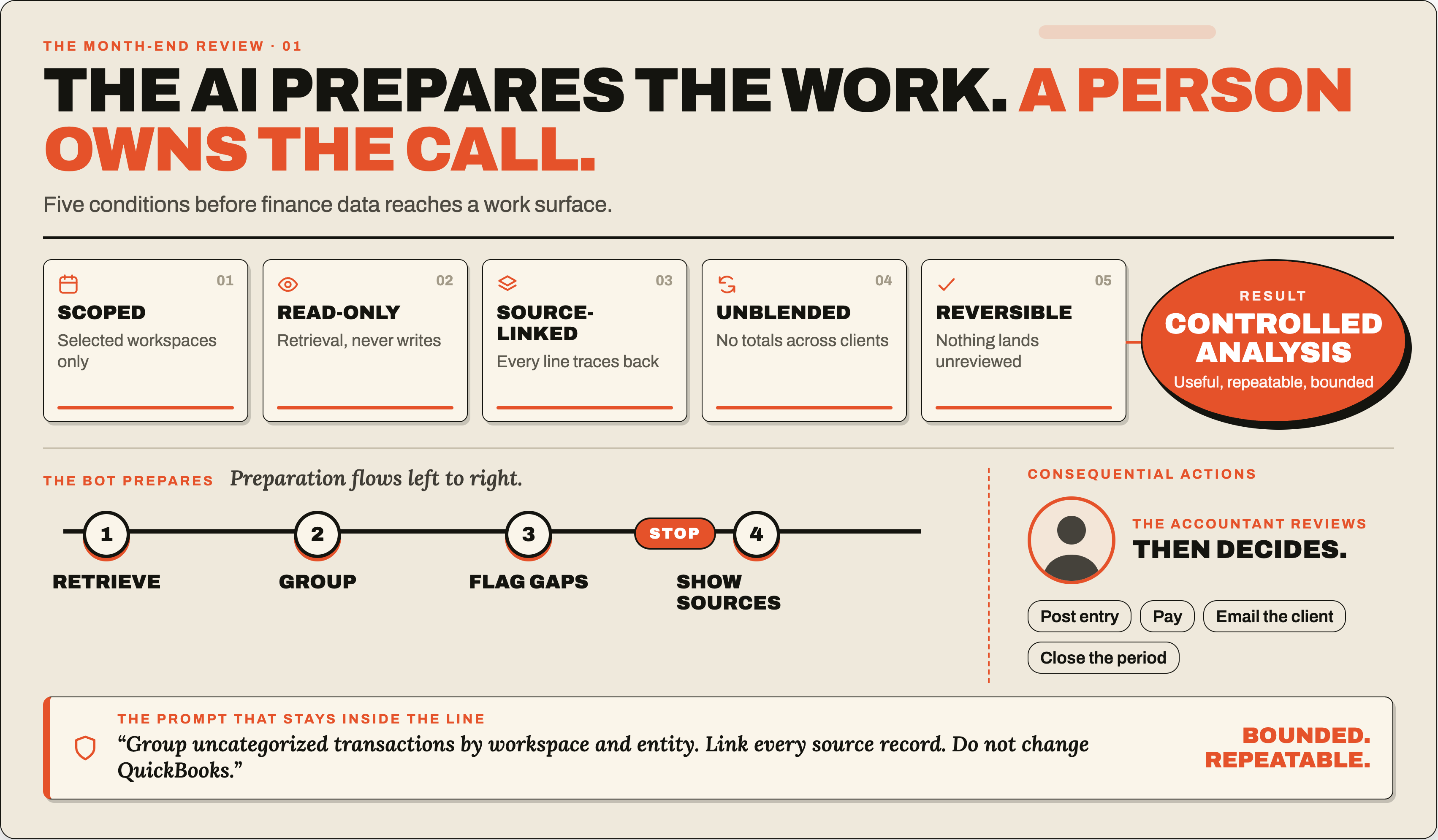
For a month-end review, ask Grok to group items by workspace and entity, include source records, and call out incomplete data. MosoFin supports review across multiple entities or clients. A workspace can include up to five authorized QuickBooks entities.
Keep the security boundary narrow
xAI’s custom MCP connector lets Grok discover the tools a server exposes. MosoFin controls its own tools; the records available to a request also depend on your workspace access, tool policies, and usage limits.
Keep these boundaries in every finance review:
- Ask for only the selected MosoFin workspaces needed for the review.
- Retrieve data through read-only tools.
- Cite source records and report missing or incomplete data.
- Stop for professional review before any action outside the analysis.
- Keep payment, publishing, deletion, write-back accounting, and permission changes outside the connector’s scope.
This guide covers Grok’s MCP connector, not the separate Grok Bot product. If you use Grok Bot too, review xAI’s separate Bot security and privacy guidance; Bot access and the MCP connector are different security boundaries.
Sources
- MosoFin, Connect MosoFin to Grok
- xAI, Grok connectors
- xAI, Connector management
- xAI, Grok Bot approvals, security, and privacy