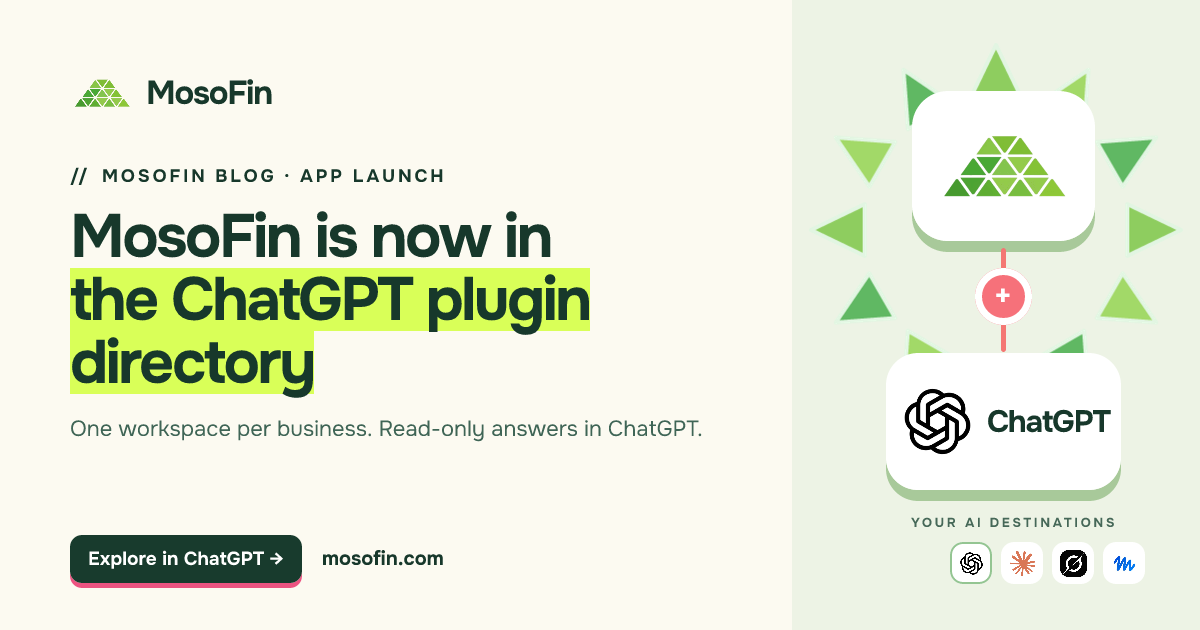
The MosoFin ChatGPT plugin is now listed in the ChatGPT plugin directory. The listing, published by BambooX LLC, describes a workspace-scoped, read-only way for authenticated finance professionals and business owners to work with connected business data in ChatGPT.
For teams with more than one business or client, the important step happens before the question: choose the right MosoFin workspace, then check which accounts are connected to it. A useful answer should stay within that scope and show the source and date behind each finding.
What is the MosoFin ChatGPT plugin?
It connects a ChatGPT conversation to the MosoFin workspaces you are authorized to use. A workspace keeps one business or client’s connected accounts and tool permissions together. Installing the plugin does not automatically connect every account or make every source available: you still sign in, authorize access, select a workspace, and check its connections before requesting data.
Watch the MosoFin ChatGPT plugin demo
In this 4-minute MosoFin demo on YouTube, we install the plugin, select a business, inspect its connected accounts, ask a cross-source review question, and save a review for later reuse. The complete steps are also written below, so you do not need to play the video to follow them.
The demo uses a Northwood workspace with QuickBooks, Stripe, and Google Ads accounts, then switches to a separate Nomad Group workspace. It also mentions possible store connections, but no store is connected in the Northwood example. Those are the accounts shown in the demonstration, not a claim that every MosoFin workspace includes them.
The video shows the workspace and source-scoping approach in practice. If you only need one focused question from accounts already available directly in ChatGPT, you may not need another layer. MosoFin is useful when you want to define which accounts belong to each business before asking across books, payments, and other sources—and keep that boundary visible as you switch clients.
What the plugin changes in a review
The walkthrough shows a practical sequence. The time links jump to the corresponding part of the video; the text stands on its own.
- Select and confirm the business (1:25). Ask MosoFin to list your workspaces and choose the one this conversation is about.
- Check connected accounts (1:45). Review their names and statuses before asking for figures. Keep another client or entity in its own workspace.
- Check permissions (2:13). MosoFin can allow a tool request, require approval, or block it according to the workspace’s settings.
- Ask a bounded question (2:29). In the demo, the question asks what changed in ad spending, payments, and open invoices last month. It requests the source and date for each measure and tells ChatGPT to say when something is missing.
- Review before acting. Check the returned records and MosoFin activity log to see which source requests the review used.
- Reuse the method, not old numbers (3:09). After reviewing the result, save the steps with explicit consent. Replaying the review for a new period makes fresh permitted reads; it does not turn a prior answer into current data.
MosoFin is a read-only review layer. The workflow shown does not change entries in QuickBooks or the other connected systems. A person still needs to check the source records, interpret exceptions, and decide what to do next.
The same boundaries matter outside ChatGPT: learn how MosoFin controls source access and explore review workflows before using an AI-generated finding in a client or management decision.
How to try it
You can read this article and view the public MosoFin listing in ChatGPT without installing anything. To use the plugin, sign in to ChatGPT, review the app and requested access, then follow the installation and MosoFin account-connection prompts available to your account. Start by asking, “List my MosoFin workspaces,” and confirm the workspace before asking for financial data. You can also follow the MosoFin ChatGPT connection guide. New to MosoFin? See the available connections and plans before setting up a workspace.
OpenAI says the plugin directory is available across ChatGPT plans, but an individual plugin’s installation and capabilities can depend on plan, workspace, role, region, and device. Directory placement is not an OpenAI Verified badge or an endorsement. If the plugin is unavailable in your workspace, check its admin settings and account requirements before troubleshooting the MosoFin connection.
Frequently asked questions
Is MosoFin available in the ChatGPT plugin directory?
Yes. We verified the MosoFin listing by BambooX LLC on October 19, 2026. What you can install and use depends on your ChatGPT account and workspace settings.
What can I do with MosoFin in ChatGPT?
Connect your MosoFin account, select a workspace, confirm its sources and permissions, and ask questions about the data available there. The demo shows a cross-source review and a saved method that can be replayed with fresh permitted data.
Does the plugin change my financial records?
No entries are changed by the read-only financial review shown in the demo. Check source records and make any consequential decisions yourself.