If month-end means exporting a Profit & Loss, pasting it into a spreadsheet, and reformatting it for someone else, start with the reports you repeat. QuickBooks scheduling, reporting tools, and read-only questions in Claude each solve a different part of that job.
Quick answer: Schedule a QuickBooks report when the same view answers your question each month. Use a dashboard when you need a standing view. For questions that change, MosoFin can retrieve authorized QuickBooks data in Claude; review the answer against the source report before using it.
Where manual reporting goes wrong
The same problems return each month:
- It’s repetitive. The same P&L, balance sheet, and cash-flow pull — every month, by hand.
- It’s stale. By the time the spreadsheet is “done,” more transactions have posted and the numbers have already moved.
- It needs explanation. An export shows figures, but a client may still ask which transactions drove the change.
Copy-paste errors, broken formulas, and multiple spreadsheet versions make the review harder to trace.
Which reports to make repeatable first
Start with the reports you actually review each month:
- Profit & Loss (income statement) — are we making money, and where is it going?
- Cash flow — where cash came from and where it went during the period.
- Balance sheet — assets, liabilities, and equity at a point in time.
- A/R and A/P aging — who owes you, and what you owe.
Add budgets, departmental P&Ls, or KPI dashboards when the basic review works reliably.
Option 1: Scheduled reports inside QuickBooks
QuickBooks Online can email a saved report on a recurring schedule. Its Management Reports feature builds branded reporting packages; available templates and features depend on your plan.
- Good for: a fixed report you read the same way every month.
- Limits: the emailed report is a fixed view. A new question may need different filters or another report.
Use it when the same report, with the same filters, answers the question each period.
Option 2: A reporting tool on top of QuickBooks
Dedicated reporting tools connect to QuickBooks and build dashboards or spreadsheet views from its data.
- Good for: teams that want polished, always-on dashboards and are willing to build and maintain them.
- Limits: you need to set up the views and check each tool’s data storage, refresh schedule, and pricing.
For a comparison, see QuickBooks reporting tools.
Option 3: Ask in plain language
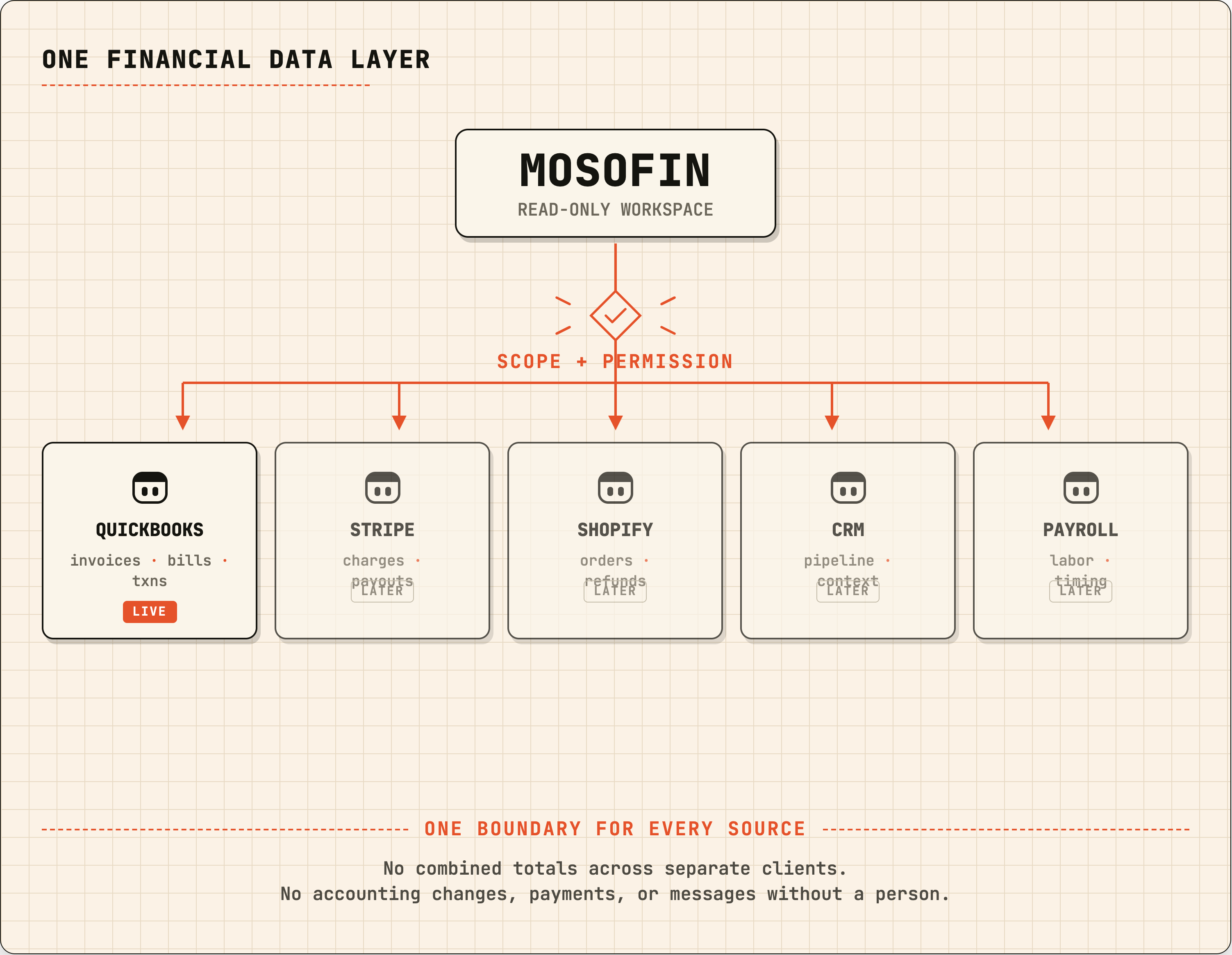
A different approach is to skip report-building and ask for what you want. With MosoFin, you connect QuickBooks once (read-only) to a permission-scoped workspace and then ask inside Claude — “show me April’s profit,” “how did cash flow trend this quarter?”, “which expenses grew most vs. last year?” Bea, MosoFin’s accounting software agent, retrieves the permitted QuickBooks data, and Claude prepares the answer in the conversation for your review.
Compared with a static report:
- It reads the connected source when asked. Check the report period and source data before treating the answer as current.
- It’s conversational. Ask the follow-up in the same chat — “now break that down by customer” — instead of rebuilding a view.
- It’s repeatable. When a workflow works, save it as a Saved Skill — a reusable instruction that guides the same request next month with current data. A Saved Skill doesn’t post, send, pay, or reconcile anything in QuickBooks; it structures the request, and you still review the result.
Do it safely: read-only, with an activity history
MosoFin’s QuickBooks access is read-only: it has no tools that create, update, delete, post, send, or pay through QuickBooks. Relevant reads appear in each workspace’s activity history. Check the output before making business, accounting, or client decisions.
A monthly QuickBooks reporting workflow
- Choose the monthly questions. For example: What changed in profit, cash, top expenses, and overdue invoices?
- Set a source and period for each answer. Use the same QuickBooks reports or authorized workspace each time.
- Check the differences. Compare the result with the prior period and open the underlying transactions when a change needs explanation.
- Record what was reviewed. Keep the report settings or workspace activity history so the next person can retrace the answer.
- Save the repeatable steps. A Saved Skill can guide the same read-only request next month, using current data.
FAQ
Can I automate QuickBooks reports for free? QuickBooks Online’s scheduled reports and Management Reports are included with QuickBooks plans that offer them — check Intuit’s documentation for your plan. MosoFin’s 14-day trial is a one-time $0.99 for any available plan, with unlimited workspaces and the selected plan’s limits; it renews automatically into the selected plan unless canceled before the trial ends.
Does a repeatable report workflow change my books? Not with MosoFin. Its QuickBooks access is read-only — MosoFin has no tools that create, update, delete, post, send, or pay through QuickBooks, and you review every result before using it.
Do I need to know QuickBooks’ report menus to do this? No. Ask for an outcome such as “show me this quarter’s profit by month.” Bea retrieves authorized QuickBooks data so Claude can prepare an answer for your review.
For an accounting-firm version, use the multi-client review workflow and month-end checklist. If you want to try the read-only approach, connect QuickBooks to MosoFin and check the first answer against your source report.